
Follow the steps below to connect to your VPS or dedicated server running Windows.
-
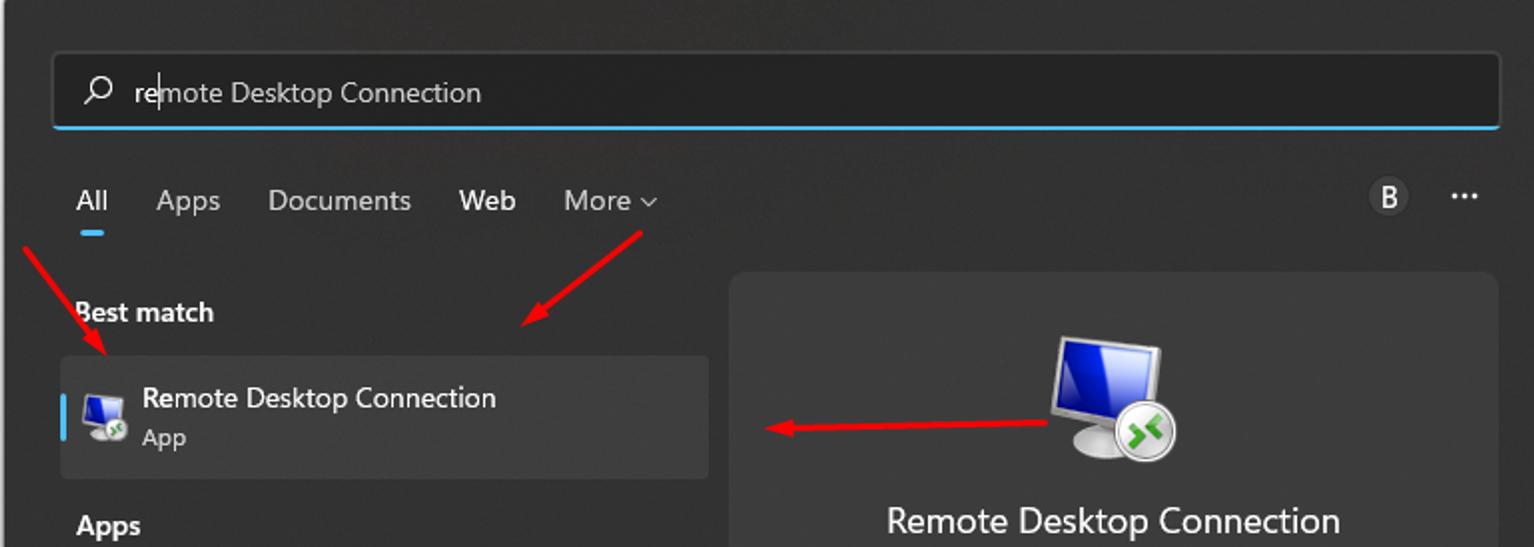
Open Remote Desktop Connection
The application is already installed on your PC. Search for Remote Desktop Connection in the Start menu.
-
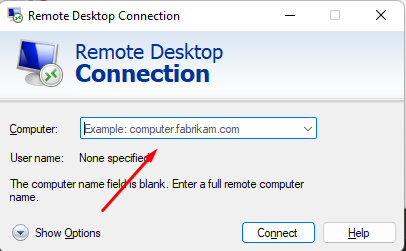
Enter the VPS IP
Type the IP address of your VPS in the Computer field.
-
Authenticate
- Username:
Administrator - Password: the one shown in your client area at my.rhqhosting.com.
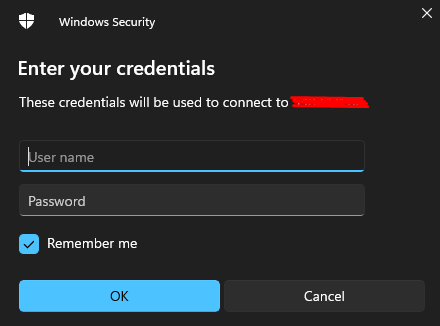
- Username:
-
Confirm the connection
After authenticating, click Yes in the window that appears.